
What are attachments?
Attachments are media files attached during data collection, to provide additional information about machine condition. An attachment can be a photo, audio, or a note, which can be added using a data collection device, e.g. ProCollect (See image below)
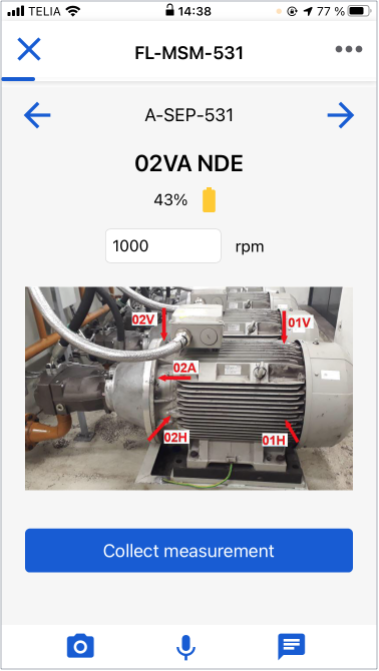
The 3 buttons at the bottom can add a photo, audio, and a note at any time during data collection
When do I expect to see attachments?
It depends. Sometimes an operator might want to include an additional message to the analyst, other times it might be used to capture an abnormal sound or a strange scene. If data collection and analysis are carried out by the same person, it can also be used as a straightforward reminder for the analysis later. Overall, attachments serve to capture the things that regular data collection is unable to include.
Where can I see attachments?
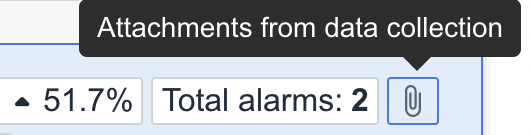
Attachment as a Reason for Analysis in the Analyze list view
-
Analyze list view: When an asset receives new data collection and attachments are found in the data, Enlight counts this as a Reason for Analysis, marks the asset with a clip icon to indicate attachments found on the asset. This icon also serves as a shortcut to the Analyze detail view, where the content can be viewed in details.

Attachment details in the detail view - the 3 photos, 1 audio and 1 note above are grouped together as they come from the same route for the same asset
-
Analyze detail view: A separate section in the detail view is dedicated to showing all attachments on an asset. In this attachment section, attachments for a particular asset are grouped by routes and organised on a timeline, from the latest to the older ones.

Attachment card in the detail view
The attachment section can be accessed by clicking the clip icon in the list view, as mentioned previously, or by clicking on any links in the attachment card (See image above), located right beneath the Reasons for Analysis card in the detail view.

For assets with no attachments collected after the latest report, the attachment card appears collapsed, with the See all link that connects to all the attachments on the asset.
-
On a Trend graph: Similar to before, attachments are still accessible from a Trend graph, with the only change being that the attached notes, images and audio are grouped by routes and embedded within the Analyze detail view, instead of being separate and detached.
-
In an inspection table: Similar to before, attachments are still accessible from an inspection table. If there are related attachments for a particular answer, you'll find a clip icon is in the last column on the same row.
Comments
0 comments
Please sign in to leave a comment.