
The Reports section enables the user to view and report asset health status.
In Reports, all available assets are shown as either a list or grouped by functional location. Filters can be applied to display the desired types of asset statuses, assets, and faults. The Asset health workspace displays details of the registered status and faults for the selected asset.
- Select Reports section in the main menu.
- Select Company from the drop down menu.
- Choose to view all reports in pre-view or list view mode.
- Navigate to wanted level in the hierarchy tree.
- a. Use Filter to narrow down the asset list.
b. Press Clear filters, to remove all applied filters. - Use the Search field to search for Asset or Functional location name.
- Use the Group by functional locations toggle button to either view the asset grouped by functional locations, or only as a list of assets.
- In the list, select wanted asset to view.
- The Asset workspace displays registered faults. From this panel, it is possible to register, edit new faults, add feedback and close reported faults.
- The current status of the Asset is indicated here.
- Press the Edit, Add recommended action, or Close fault buttons to make changes to the status report of the fault.
- Press "Save" to confirm changes.
- Or if no changes made and the same condition is still accurate, press "Confirm status".
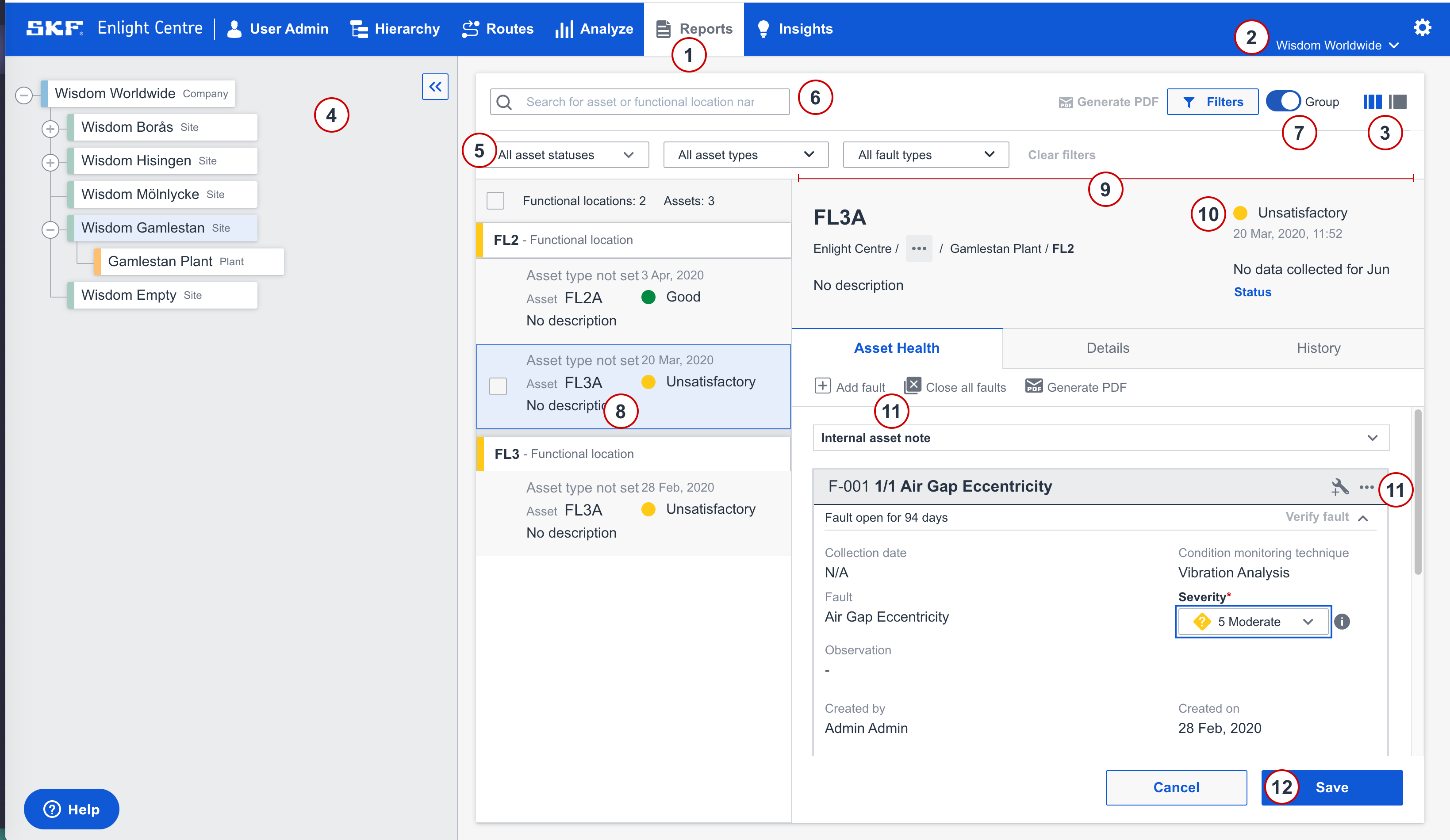
Pre-view mode in Reports section
Comments
0 comments
Article is closed for comments.