
Routes are used to manage what data to collect and when data is to be collected from machines using portable devices. A route is a selection of Functional Locations with measurement, inspection or lubrication points.
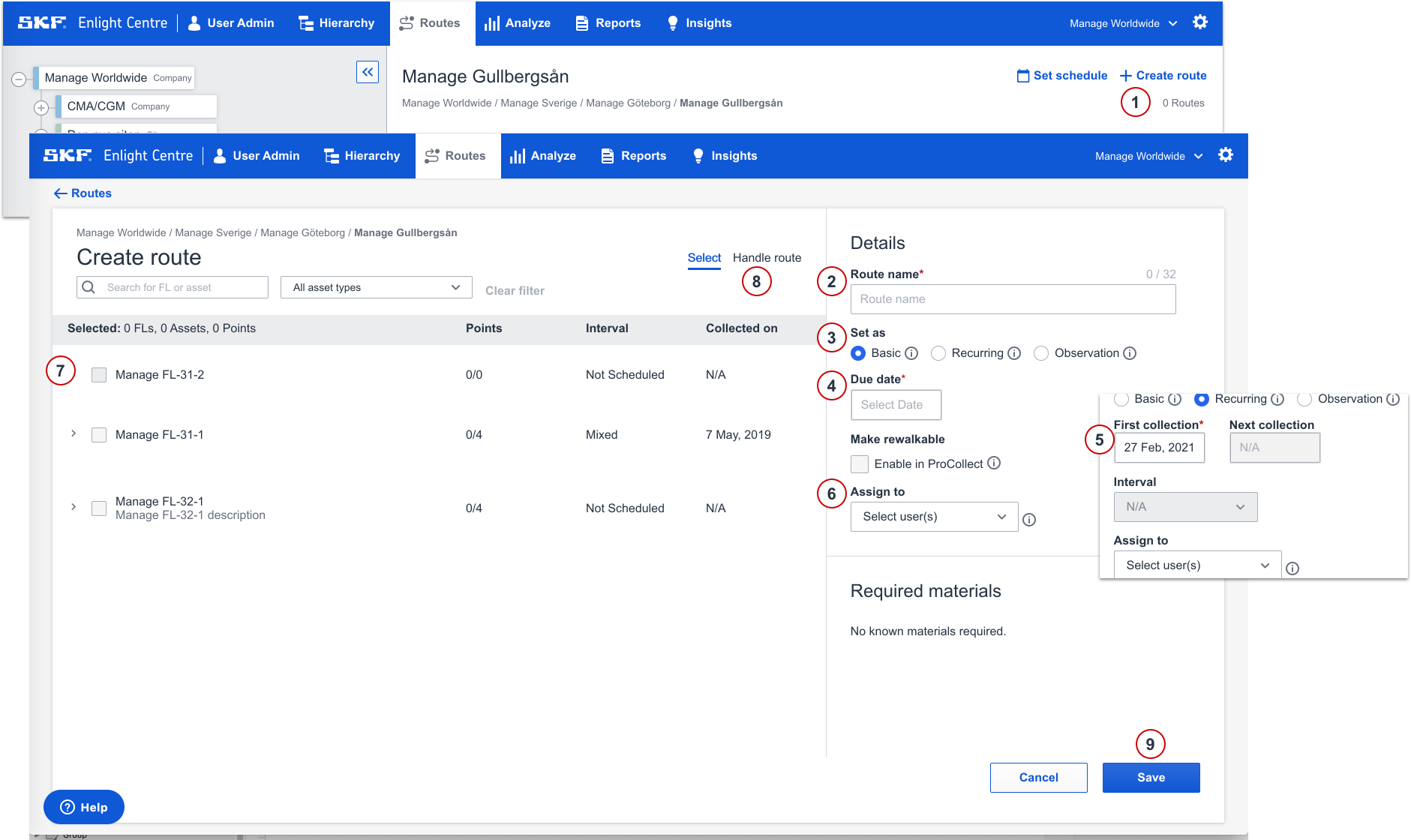
Navigate to Route section in the main menu.
- Select the + Create Route option.
- Enter the Route name.
- Set as either Basic, Recurring or Observation.
- For Basic routes, set Due date for the route.
Optionally for Basic routes, set Make rewalkable.
For Recurring routes, set date for First collection. - For Recurring routes, select the desired Interval for how often the route should be collected.
For Observation routes, set the desired duration for how long the route should be observed, and then select the Interval.
Note: The Interval is automatically set based on the individual scheduled intervals of the Functional Locations. If no scheduled intervals are set for the Functional Locations, the Interval can be set manually. - Assign user(s) with access to ProCollect and the specific plant to the route. The route will only be visible for the assigned users.
Note: If no user is assigned to the route, the route will be available to all ProCollect users with access to the plant. - Select specified Functional Locations, Assets and Points, by ticking the boxes.
- To arrange your selected Functional Locations, Assets and Points, select Handle route. Drag and drop the Functional locations to wanted order.
- Press Save to save the route or Cancel to cancel the operation.
Create route
Comments
0 comments
Article is closed for comments.