
Navigate to wanted level in tree navigation in Enlight Centre to view all routes on that level. Find the route you want to delete.
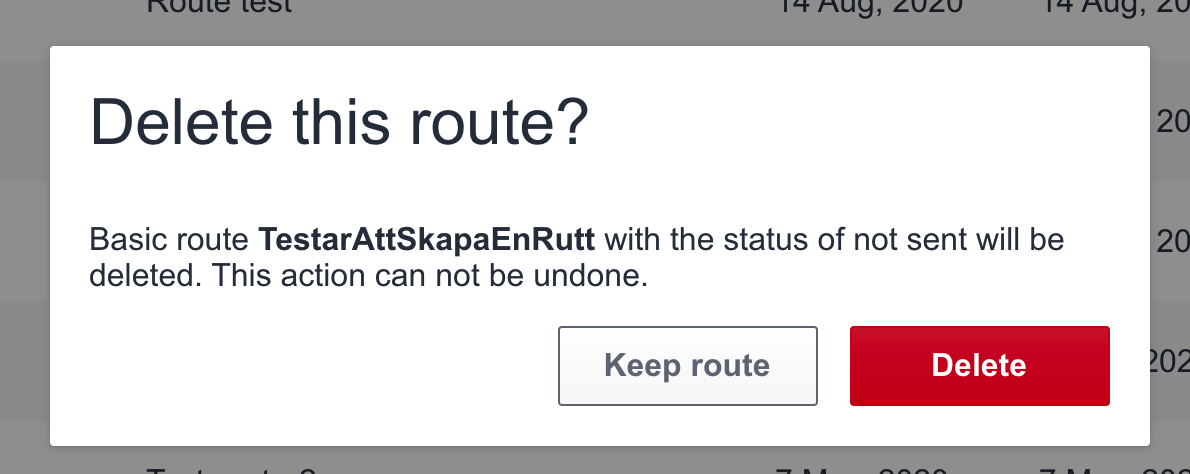
For basic route
- Select the three dots "..." (more menu) and select Delete.
- Confirm Delete.
For Recurring and Observation route
- Make sure that the route is set to Inactive. If it is set to Active, reselect option Inactive.
- Click on the three dots "..." (more menu) and select Delete.
- The route is now removed from Enlight Centre.

Delete a route in Routes tab Enlight Centre
To be able to delete a recurring route, all occurrences of the route must have one of the final statuses: Completed, Partially completed or Missed. If a route occurrence has one of following status; Sent, Received or In progress the occurrence needs to be force completed in ProCollect before it can be deleted in Enlight Centre.
Note! Force completed removes the option to change or update the route, and no additional data can be added.
- Log into ProCollect
- Select the route you want to force complete.
- Click on "..." (more menu) in the upper right corner.
- Select the Force complete route option.
- Verify the completion.
- Upload route to Enlight Centre.
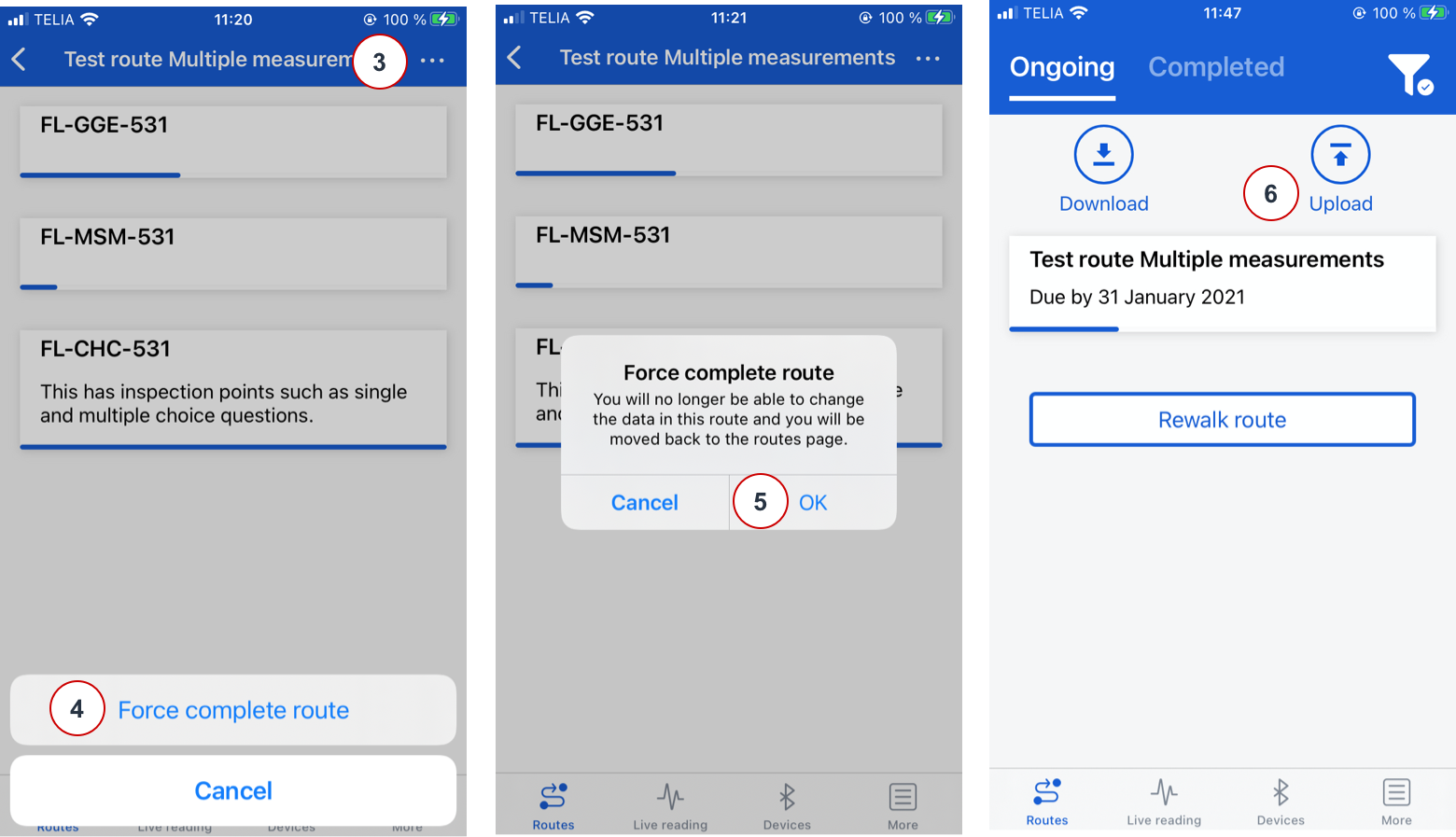
Force complete route in ProCollect
Go back to the Routes tab in Enlight Center
- Set the route to Inactive
- Delete the route by taping the more menu and select Delete.
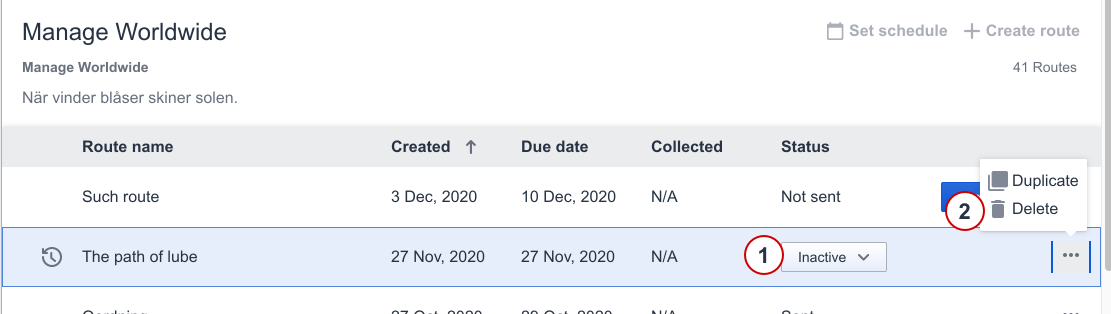
Delete a route in Routes tab Enlight Centre
Comments
0 comments
Please sign in to leave a comment.