
1. Place the QuickCollect sensor at the measurement point. Start collecting data by tapping the Collect Measurement button. If an image for the asset is added in Enlight Centre, then the image is displayed here.
Note: Make sure that the QuickCollect sensor is placed on the asset and is mounted correctly.
2. If a measurement location is set in Enlight Centre, it is displayed on the image. This indicates where to place the QuickCollect sensor.
3. The QuickCollect sensor is collecting data.
4. The Measurement Results screen is shown. The collected data includes Velocity, Acceleration envelope and Temperature.
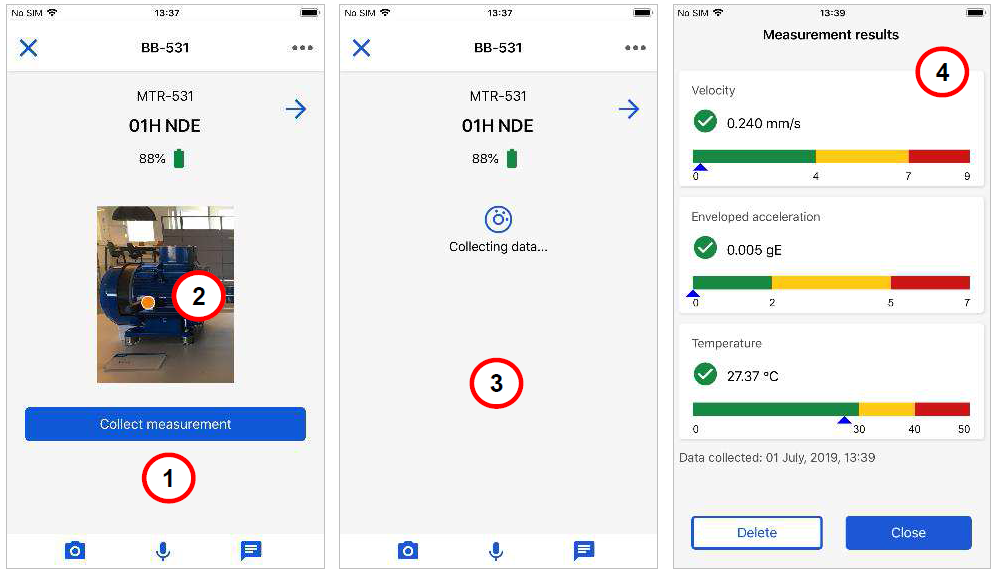
Collect measurement data
Each reading displays a current overall measurement. If alarm thresholds are configured, the alarm status, alert thresholds and danger thresholds are also displayed. The colour-coded bars indicate alarm status: green for acceptable, yellow for alert and red for danger.
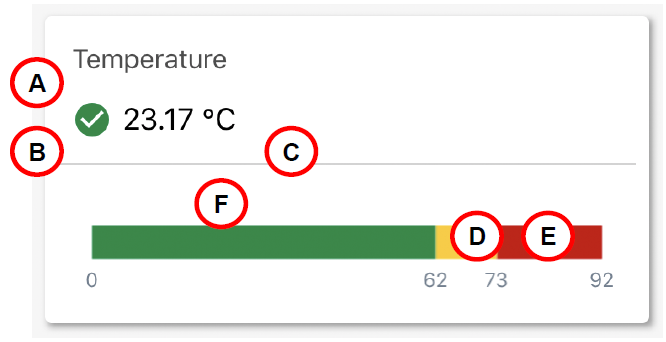
Reading detail
| A Measurement type | D Alert threshold |
| B Alarm status | E Danger threshold |
| C Overall value | F Current reading |
5. Tap the Delete button to delete the collected data.
6. Tap Close to continue.
7. If the collected data is out of range, a warning message is shown.
8. Select buttons for adding a photo, an audio file or a text attachment to a measurement point.
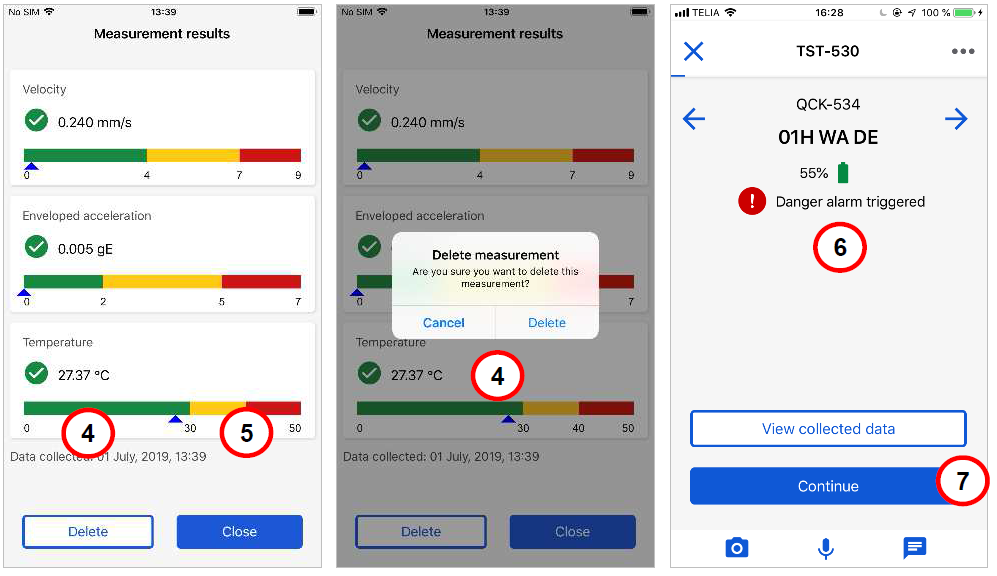
Collected measurement data
9. Tap on the dots by the asset name and then View trend history, to access view historic data for the selected measurement point.
10. Trend history without alarms. Press the X to exit the view.
11. Trend history with alarms. Press the X to exit the view.
12. Tap Continue to proceed.
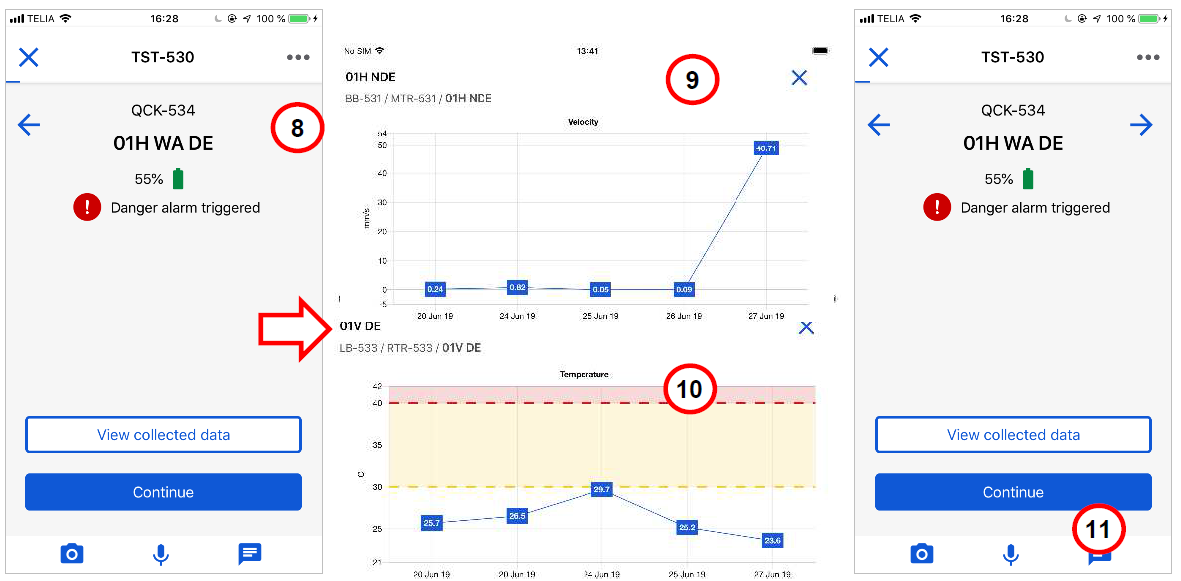
View past measurements
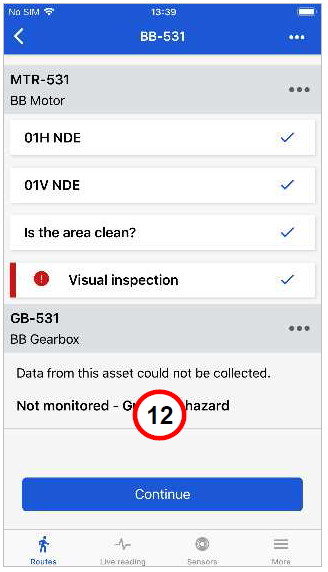
Completed functional locations
13. Repeat the process for the next functional location by tapping Continue.
14. After completing a route, tap Sync. This synchronizes all collected data with Enlight Centre.
15. Once the route is completed and synced, it is moved to the Completed tab.
16. Collected measurement data is uploaded to Enlight Centre.
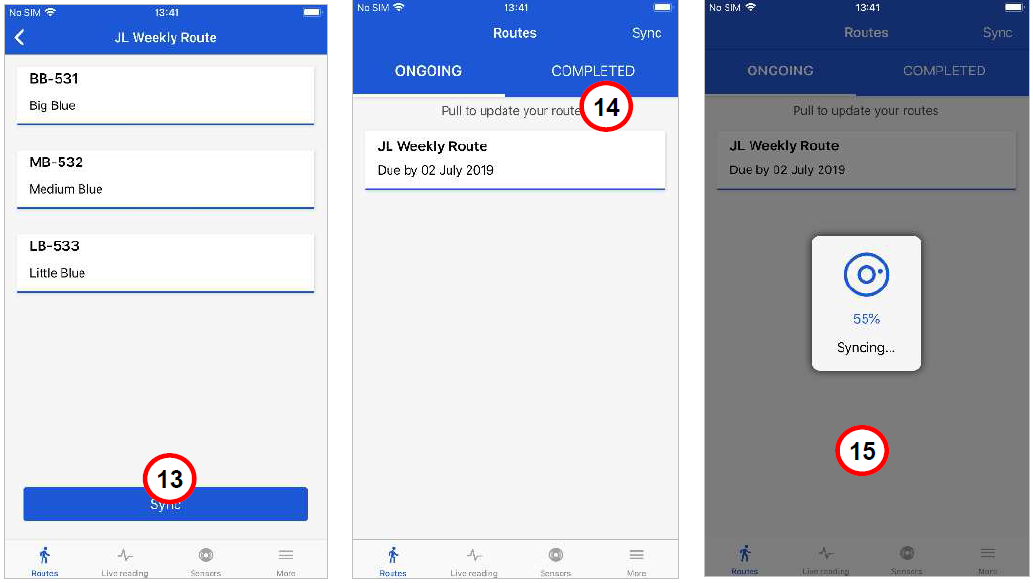
Synchronise all collected data
Note: Synchronisation of collected data with Enlight Centre can only be performed
when a mobile data connection is available. If connection is lost during synchronisation, the Sync button must be tapped again when the connection is reestablished.
Note: Collecting data with ProCollect does not require a mobile data connection.
Comments
0 comments
Article is closed for comments.