
In hierarchies, the alarm thresholds for a Measurement location, Inspection point or QuickCollect point are set.
Machine data collected and transferred to Enlight Centre is displayed on the screen with easy-to-identify colour-coded bars that indicate alarm status: green for acceptable, yellow for alert and red for danger.
The alarm levels can also be synchronised with the SKF ProCollect app. See the ProCollect User Manual, Section 6 References, for further information.
Note: The alarm thresholds can only be set after the Measurement point, Inspection point or QuickCollect point is saved.
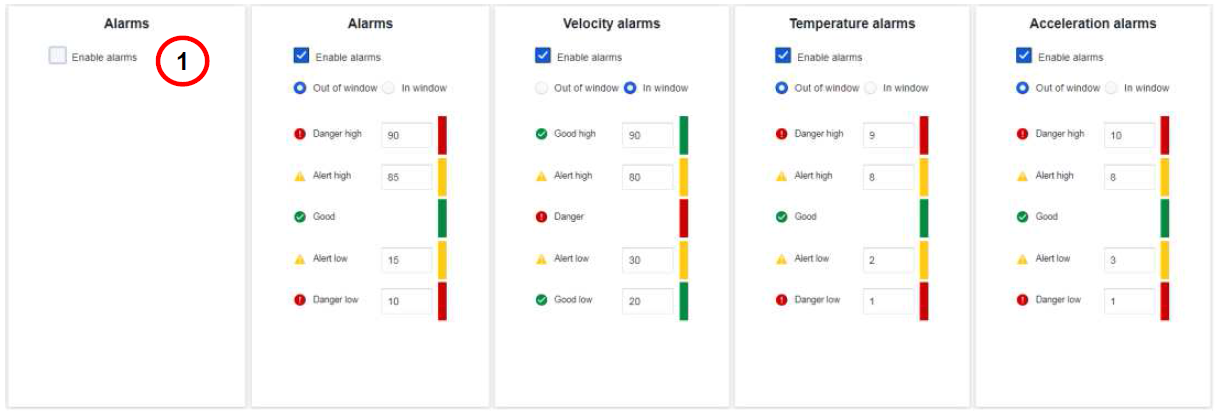
Set alarm levels for Measurement point, Numeric Inspection point and QuickCollect
point
- Select Enable alarm and enter values for the alarm thresholds.
- Out of window means that if a value is outside a certain range, it will trigger an alarm. An example of this is temperature.
If something is too cold or too hot, it is ‘bad’. In this case it is Danger high if it is too hot and Danger low if it is too low. - In window is the opposite alarm logic. The value is considered good if it is above a certain number or below a certain number. An out of window alarm is more commonly used, but in either case the colour bar to the right, will usefully feedback a confirmation of where the alarm zones are being set.
Alarms can be configured for Inspection points with either single choice or multiple-choice question. An alarm and operator instructions can be specified for each added answer.
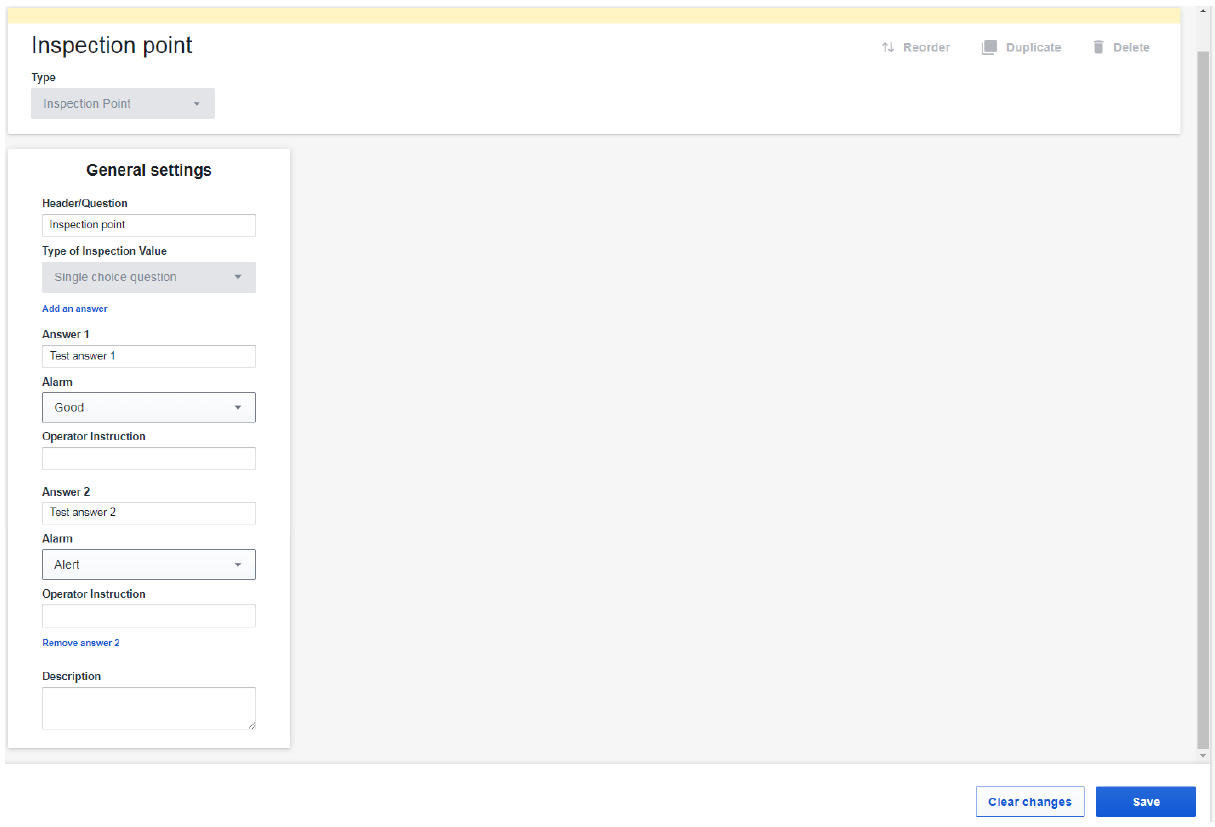
Set alarm levels for multiple choice question Inspection point and QuickCollect Point
Comments
0 comments
Article is closed for comments.